
App for Shopify
The AWB, right from the Shopify order
No copy-paste into the courier's site. Open the order, compare the quotes and create the AWB, and the order is marked fulfilled for you.
Then see your cash on delivery in your Livraria account, parcel by parcel.
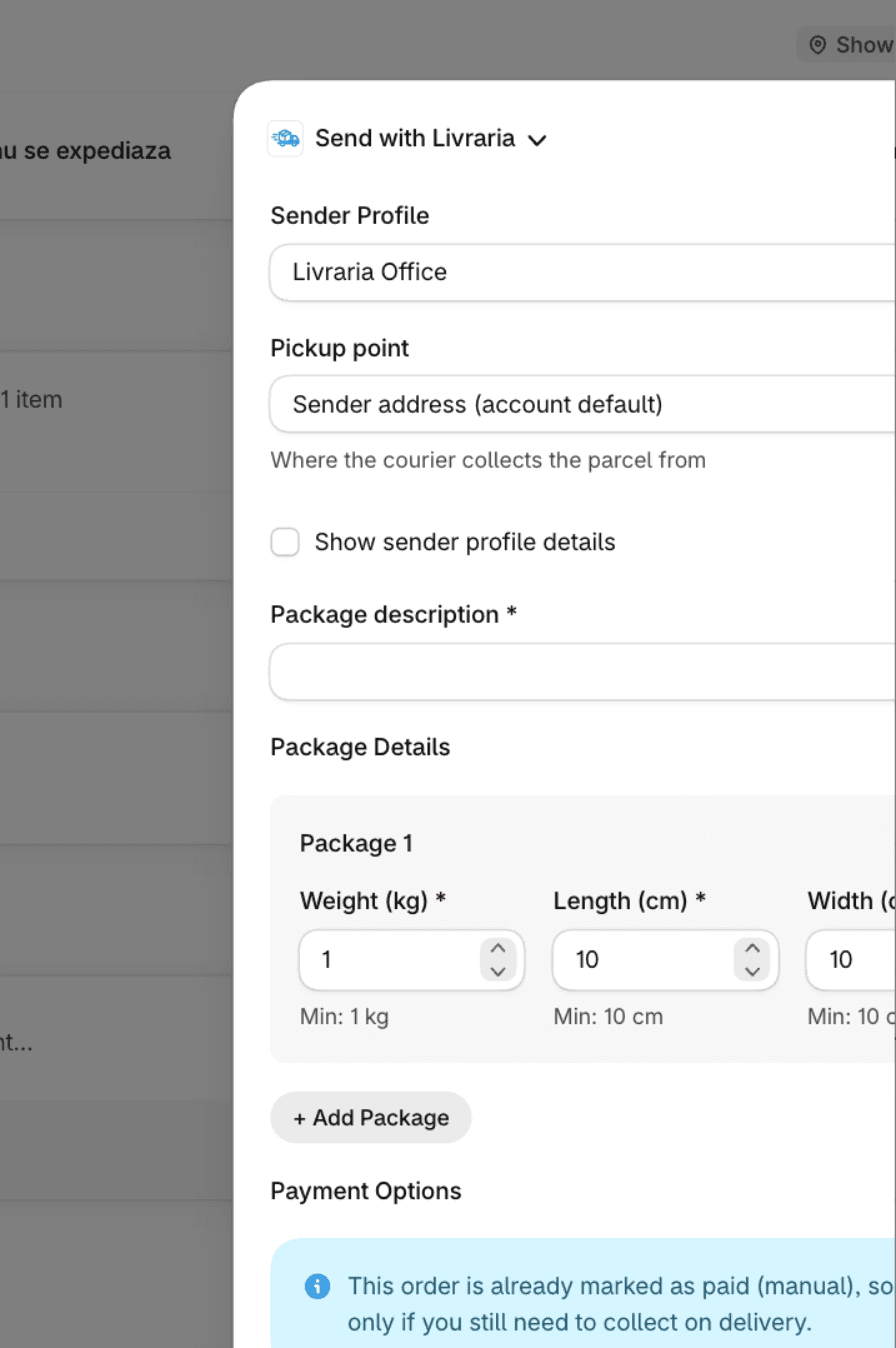
Stay on the order page
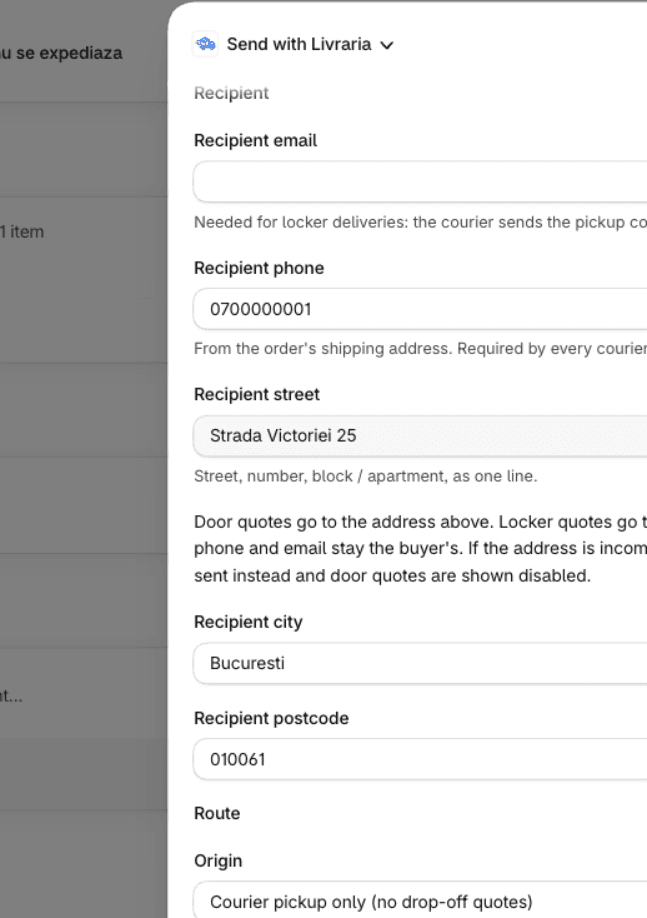
The address, phone and total come from the order. You check them and choose the courier.
Open the order and choose More actions → Send with Livraria.
Check the recipient, parcel and cash on delivery taken from the order.
Press Get Shipping Quotes and pick the quote you want.
Press Generate Shipment Label and print the PDF. The order becomes fulfilled, with the AWB as its tracking number.
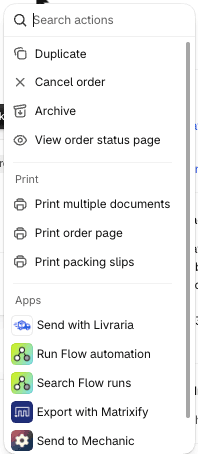
Several orders? Send them in one go.
Select up to 50 orders in the order list and choose Create Livraria AWBs. Each order ships as one parcel, using your shop's defaults. An order that needs a check is reported and the rest carry on. You print the labels one by one, from the same window.
To receive
Cash on delivery collected, not yet paid out to you
Total to receive
533.40 RON
| Shipment | Recipient | Delivered on | Amount |
|---|---|---|---|
| 1LVR00000418 | Andrei Pop | 12/11/2026 | 149.00 RON |
| 1LVR00000421 | Maria Ionescu | 13/11/2026 | 89.50 RON |
| 1LVR00000425 | Elena Stan | 13/11/2026 | 230.00 RON |
| 1LVR00000430 | Mihai Dobre | 14/11/2026 | 64.90 RON |
DPD cash-on-delivery transfer of 10/11/2026
Bank transfer · 6 shipments
See your cash on delivery, parcel by parcel.
Your Livraria account lists what you are owed: each AWB, the recipient, the delivery date and the amount. Each payout shows the parcels in it, and you can export it to CSV.
What the Shopify app does
Quotes from Livraria's couriers: DPD, Sameday, FAN Courier, Cargus, GLS and Curiera.
Every route, quoted at once
Door to door and through lockers, in tabs, with the lowest usable quote marked.
Lockers for your buyers
easybox Sameday and locker DPD from one list: in the cart or after the order, on the Thank you and Order status pages (the after-order option is not on the Starter plan).
Cash on delivery and open on delivery
The COD amount comes from the order. For an order already paid, COD is off by default.
Several parcels
In Send with Livraria you add parcels, each with its own weight and dimensions.
Label and tracking
Print or download the PDF label, and the order gets the AWB and tracking link.
Cancel from the same window
Until the courier has taken the parcel, you can cancel the AWB in the app and the items are unfulfilled again.
Good to know
- The app does not add a rate at checkout: for lockers, you create the shipping rate in Shopify.
- When the app marks an order fulfilled, Shopify does not email the customer about it.
- The locker picker is in Romanian, and the window in the Shopify admin is in English.
Get started in three steps
Create your Livraria account
Add a sender profile with your pickup address and the IBAN for cash on delivery.
Connect your store
Install the app in Shopify, accept the permissions and connect your Livraria account.
Send your first order
Open the order, choose Send with Livraria and create the AWB.
Your next Shopify order can ship from its own page.
Connect your store and create the AWB where you already work.
No account yet? Create one. Want a price estimate? Open the calculator.
Frequently asked questions
Do I need a Livraria account?
Yes. The app ships through your Livraria account, with your sender profiles.
What does a shipment cost?
Each quote shows its price before you create the AWB, and nothing is created until you press Generate Shipment Label. For an estimate, use the calculator.
Can I create AWBs for several orders at once?
Yes, up to 50 in one run, from the order list. Each order ships as one parcel, with the defaults. For several parcels on one order, use Send with Livraria.
Which lockers can buyers choose?
easybox Sameday and locker DPD. You add the cart picker from the app, and it goes live when you save the theme. The after-order option does not work on the Starter plan.
Can I cancel an AWB?
Yes, from the Send with Livraria window, until the courier has taken the parcel. After that, Livraria refuses the cancellation.
Want every step, with screenshots? Open the setup guide