
Plugin for WooCommerce
The AWB, right from the WooCommerce order
No copy-paste into the courier's site. Open the order, compare quotes in the Livraria panel and create the AWB.
Then see your cash on delivery in your Livraria account, parcel by parcel.
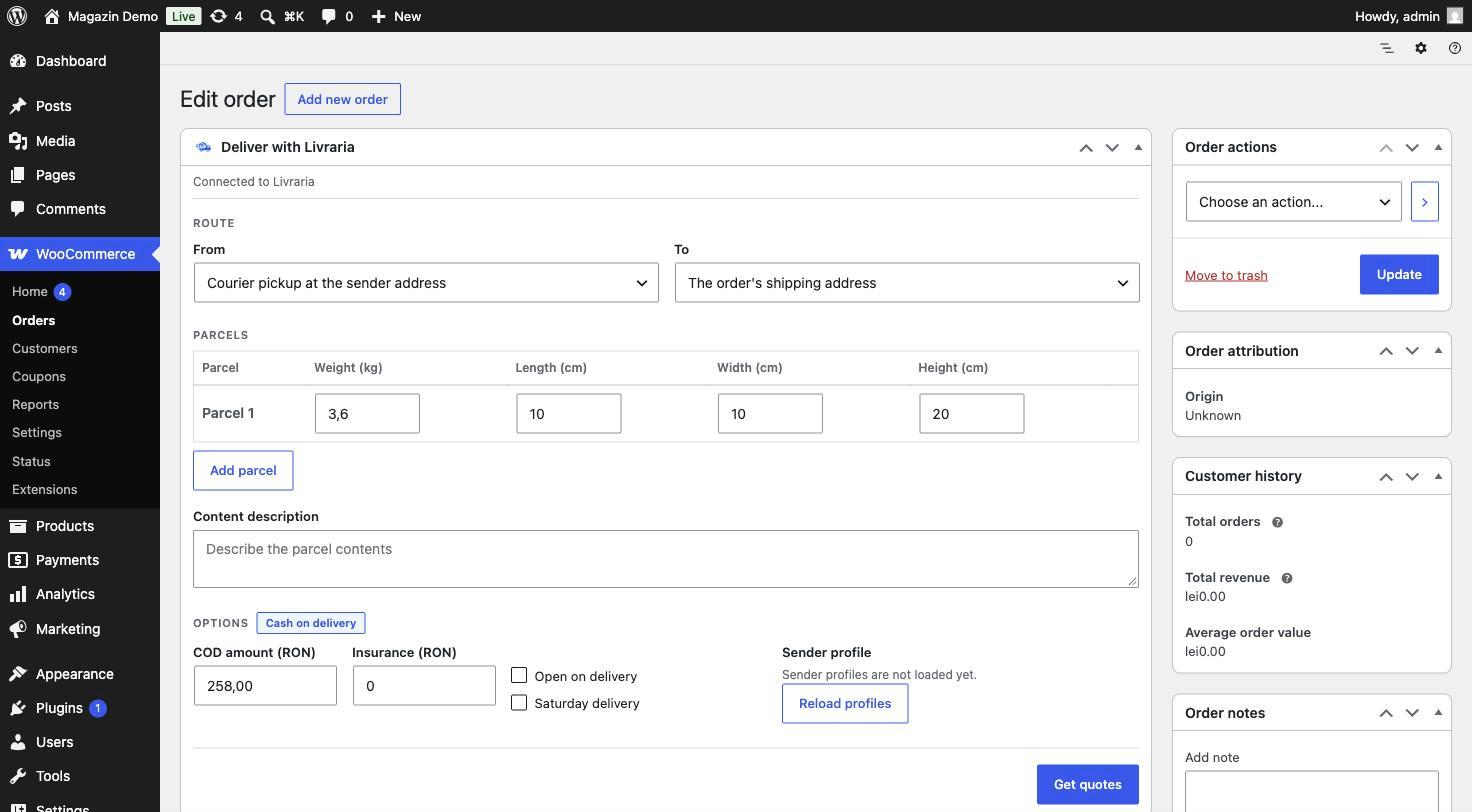
Stay on the order page
The Deliver with Livraria panel sits right on the order, with its details.
Open the order from WooCommerce → Orders.
Check the route, the parcel and the cash on delivery amount.
Press Get quotes and pick a courier. The cheapest route is marked, and a courier that cannot take the parcel is greyed out with the reason.
Press Create AWB and download the label in A4 or A6.
To receive
Cash on delivery collected, not yet paid out to you
Total to receive
533.40 RON
| Shipment | Recipient | Delivered on | Amount |
|---|---|---|---|
| 1LVR00000418 | Andrei Pop | 12/11/2026 | 149.00 RON |
| 1LVR00000421 | Maria Ionescu | 13/11/2026 | 89.50 RON |
| 1LVR00000425 | Elena Stan | 13/11/2026 | 230.00 RON |
| 1LVR00000430 | Mihai Dobre | 14/11/2026 | 64.90 RON |
DPD cash-on-delivery transfer of 10/11/2026
Bank transfer · 6 shipments
See your cash on delivery, parcel by parcel.
Your Livraria account lists what you are owed: each AWB, the recipient, the delivery date and the amount. Each payout shows the parcels in it, and you can export it to CSV.
What the WooCommerce plugin does
Quotes from Livraria's couriers: DPD, Sameday, FAN Courier, GLS and Curiera.
Every route, quoted at once
Door to door and through lockers, in tabs, with the cheapest route marked.
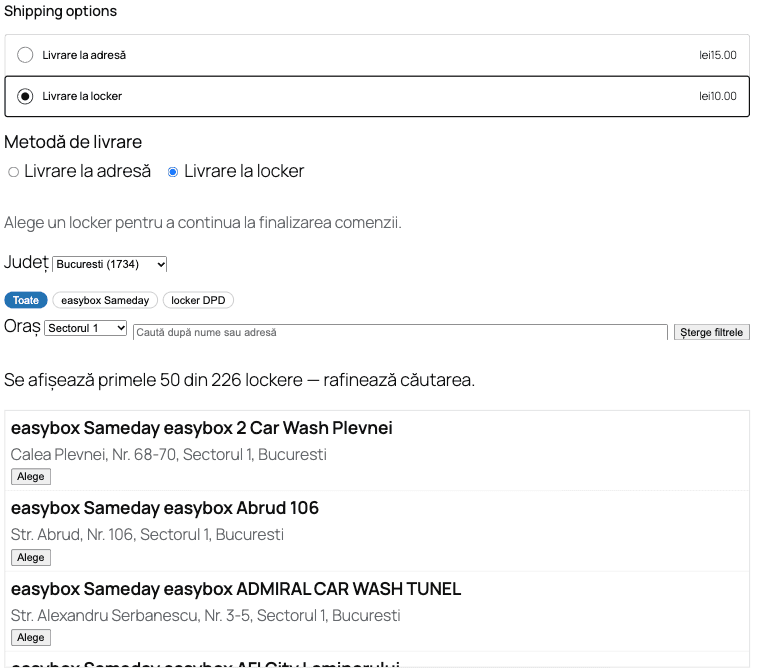
Lockers at checkout
The buyer picks an easybox Sameday or a locker DPD, on the classic or the block checkout.
Cash on delivery and services
On the order you set COD, insurance, open on delivery and Saturday delivery.
Several parcels
The plugin suggests the parcel from the products, and you correct it or add more.
A4 or A6 labels
Once created, download the label and open tracking from the panel.
Automatic AWB, if you want it
Optionally, the AWB is created with the cheapest courier after you mark the order Completed and open it in the admin.
Good to know
- An AWB is cancelled from your Livraria account, not from the plugin.
- The plugin creates one AWB per order. For many parcels at once, use bulk orders.
- For lockers, you add the shipping method in WooCommerce and tick it in the Livraria settings.
- On the block checkout, if the buyer changes the address after choosing a locker, the choice can be lost. Check the destination in the panel before you create the AWB.
Get started in three steps
Create your Livraria account
Add a sender profile with your pickup address and the IBAN for cash on delivery.
Install the plugin
In WordPress, go to Plugins → Add Plugin, search for “livraria”, press Install Now, then Activate.
Log in
Under Settings → Livraria, log in with your account and choose the default sender profile.
Your next WooCommerce order can ship from its own page.
Install the plugin and create the AWB where you already work.
No account yet? Create one. Want a price estimate? Open the calculator.
Frequently asked questions
Do I need a Livraria account?
Yes. The plugin ships through your Livraria account, with your sender profiles. Your password is not stored in WordPress.
What does a shipment cost?
Each quote shows its price before you create the AWB. For an estimate, use the calculator.
Can I create AWBs for several orders at once?
Not from the plugin: you create one AWB from each order, or turn on automatic creation. For many parcels at once, use bulk orders from Excel.
Which lockers can buyers choose?
easybox Sameday and locker DPD, for the shipping methods you tick in the Livraria settings.
Can I cancel an AWB from the plugin?
No. Cancel it from your Livraria account. The Remove local record link only clears the record on the order; it does not cancel the AWB.
Want every step, with screenshots? Open the setup guide